

















The Administrator user is the account on Windows Server 2022 with the highest privileges. This means an Administrator can install/uninstall software, access all files/folders, and change security settings on the server.
In this tutorial we will demonstrate the steps with screenshots on how to change the Administrator password on Windows Server 2022.
5 Easy Steps to Change Administrator Password on Windows Server 2022
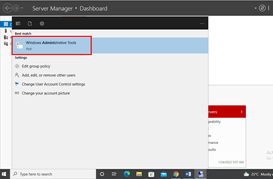
Step 1: Go to Start and search for Administrative Tools. Then click the associated result

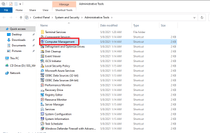
Step 2: Double-click on Computer Management as per the screenshot below

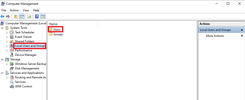
Step 3: Expand the Local Users and Groups from the left sidebar, and then choose Users option from the list

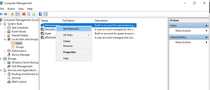
Step 4: Right-click on the Administrator option and click Set Password as shown below

Step 5: Enter a new Administrator password and click OK


You are all set! You have now successfully changed the password for Administrator account on Windows Server 2022.


