









High Performance Starts Here — AMD Dedicated Servers

English

Home

Blog

How To Connect to a Linux Server from Ma...

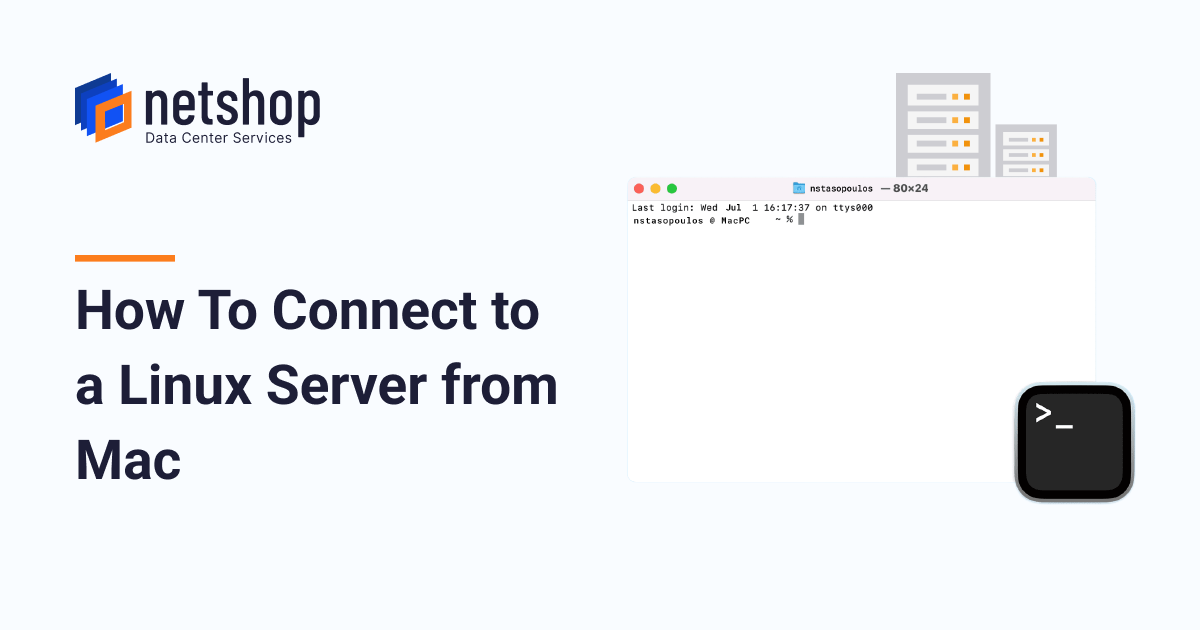
How To Connect to a Linux Server from Mac

How To Connect to a Linux Server from Mac

Nikos Stasopoulos

Nikos Stasopoulos ·

Jul 13, 2022 · Technical Tutorials

In this tutorial we will explain the easiest way to connect to your Linux VPS or Dedicated server from your Mac.

Prerequisites:

  • PC or laptop with MacOS.
  • Terminal  (comes pre-installed with MacOS)
  • Internet Access
  • Active Linux VPS or Linux Dedicated Server
  • Your server’s IP address, Username and Password (can be found from within the myNetShop portal)

Step 1 – Run Terminal

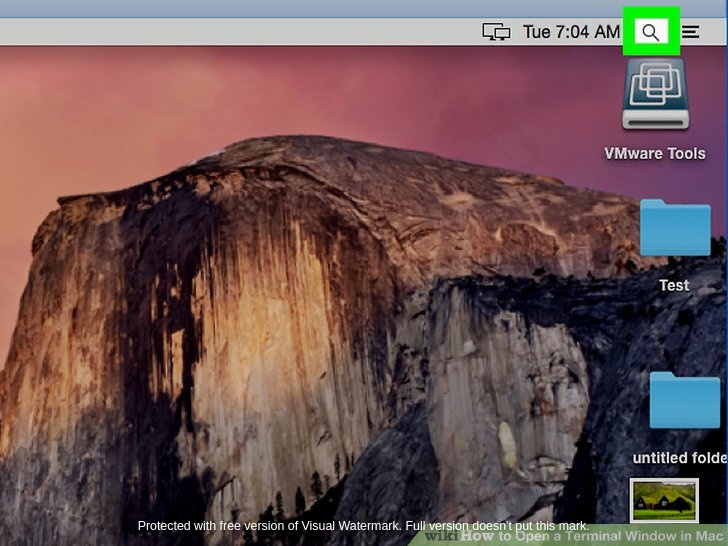
Click the Spotlight icon. It’s the magnifying glass in the upper-right corner of the screen. See below screenshot for reference.
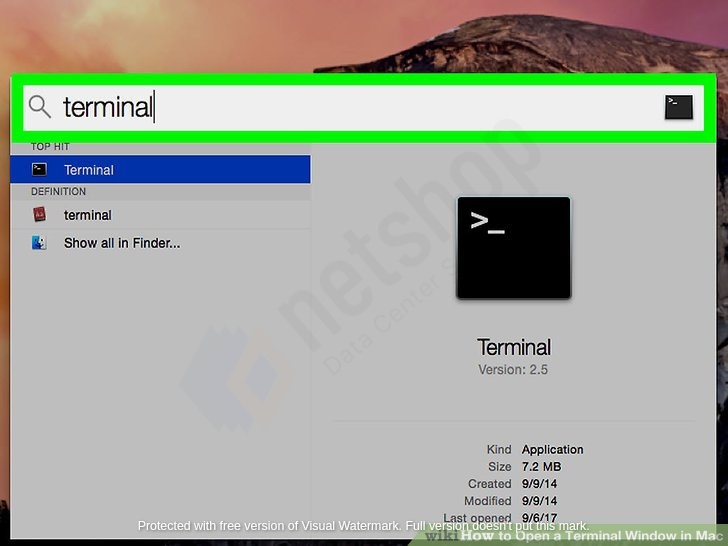
Type terminal in the search field. Then double click the result to open the terminal.
Step 2 – Connect via SSH

A new window with the terminal app will open.

Enter the command: ssh root@your-server-IP-address

Then provide your password and hit Enter.

On your first login attempt the system will ask if you are sure you want to connect. Type yes and hit Enter.

Congratulations! You are now connected to your Linux server via Terminal on Mac.
how to
linux
server
tutorials
Press Releases
97

Free VPS Trial

No Credit Card Required.

Start Your VPS Hosting Free Trial

Recent Posts

What Can You Do With a Hermes Agent VPS? - NetShop ISP Blog

What Can You Do With a Hermes Agent VPS?

30 July 2026

Hermes AI Agent VPS - Deploy in 1 Click

Introducing Hermes Agent VPS: Your Own AI Agent, Live in One Click

22 July 2026

How To Protect Your Website from DDoS Attacks in 2026

How To Protect Your Website from DDoS Attacks in 2026

14 July 2026

Why Your Stream Keeps Buffering (And How to Fix It)

Why Your Stream Keeps Buffering (And How to Fix It)

08 July 2026

How to Secure Your WordPress Website in 2026

How to Secure Your WordPress Website in 2026

30 June 2026